
Chavruti in Muse
Ask Muse in the chat to add Chavruti, then press Connect on the card it shows. It works in muse.ai and the Muse apps. Any Muse plan, including the free one.
Add a custom connector with the id chavruti, named Chavruti • חַבְרוּתִי. MCP server: https://api.chavruti.ai/mcp. Sign-in is OAuth with dynamic client registration and PKCE; the endpoints are listed at https://api.chavruti.ai/.well-known/oauth-authorization-serverHave a Chavruti account
Start your 14 free days with Google or an email address, or sign in if you have an account. Connecting your assistant and setting up your learning can happen in either order.
Ask Muse to add the connector
Muse has no form for this: you ask in the chat, and Muse builds the connection itself. Open a new chat and send the request above, as written. It takes a minute or two.

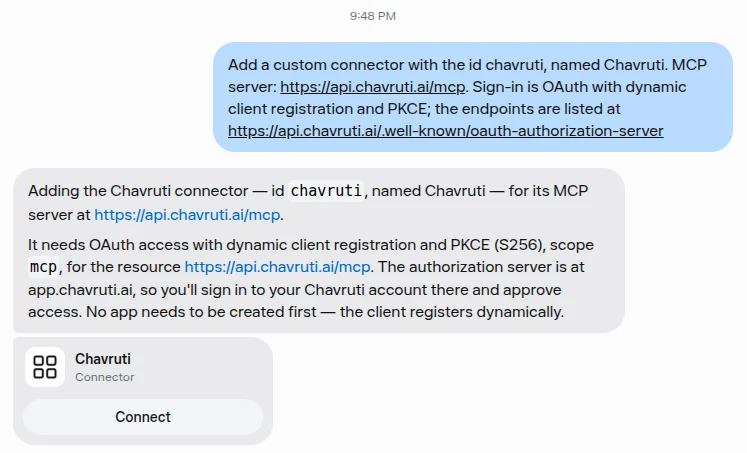
Press Connect on the card
Muse answers with a Chavruti connector card. Press Connect.
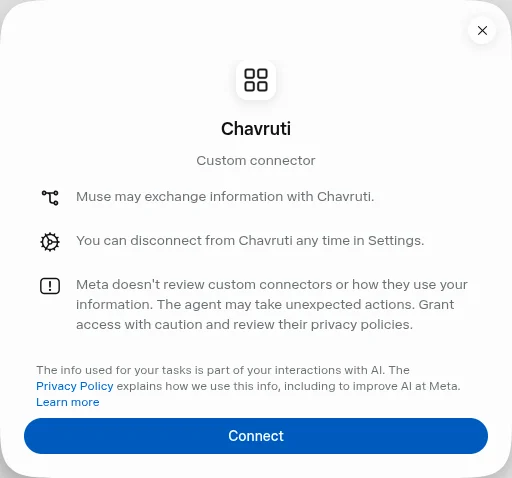
Confirm
Muse explains custom connectors. Press Connect again.
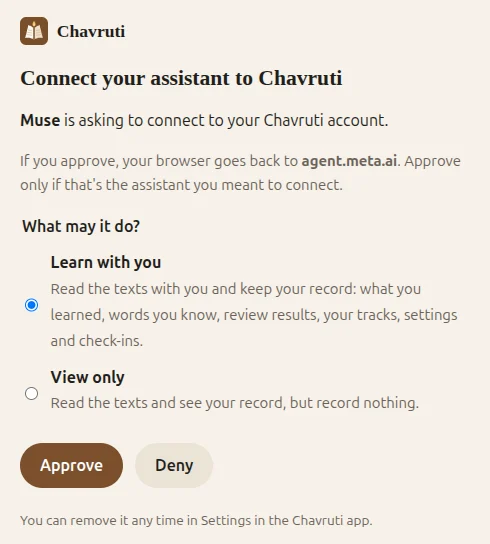
Sign in to Chavruti and approve
Chavruti's own page opens and names the assistant asking. Sign in if you aren't already, then choose Learn with you so Muse can record what you learn, or View only to let it read without recording, and press Approve. You can remove the connection any time in the Chavruti app under Settings → Assistants.
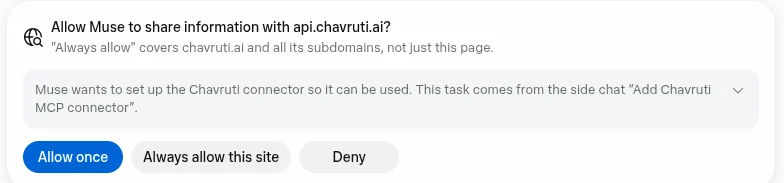
Let Muse reach chavruti.ai
Muse asks whether it may share information with api.chavruti.ai. Press Always allow this site; Allow once works too, but then Muse asks again each time it uses Chavruti. Muse then tests the connection and says in the chat that Chavruti is connected.
Check it in Settings
Chavruti is listed under Settings → Connectors → Connected, which is also where you disconnect it.
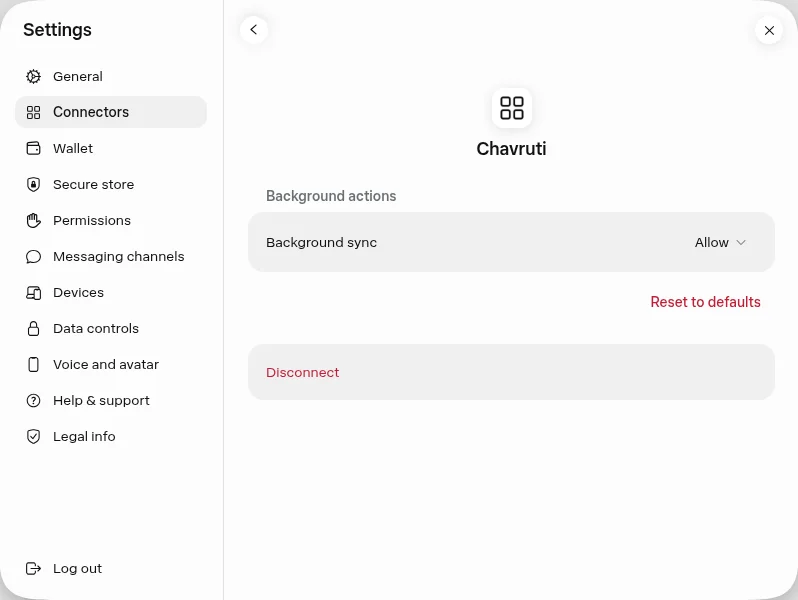
Say hello
Start a new chat and say "Let's start learning with Chavruti." Your assistant asks a few questions about you, then opens a real text with you within the first few minutes.
Questions
Muse says it couldn’t connect.
Ask Muse to remove the Chavruti connector and add it again. Muse keeps the first registration it made; adding it afresh makes it register again with Chavruti.
The card has a different name.
Muse names the card after the id it gave the connector, and renaming it later doesn’t change the card. Disconnect it under Settings → Connectors and send the request on this page again; it names the id.
How do I disconnect?
In the Chavruti app, open Settings → Assistants and press Disconnect; it stops working at once. You can also remove Chavruti in Muse's own settings. Your learning record stays in Chavruti either way.