
Chavruti in Gemini
Add Chavruti as an MCP server in Gemini’s Developer Mode, then sign in. It works in gemini.google.com. A Google account where Gemini offers Developer Mode in its settings.
https://api.chavruti.ai/mcpHave a Chavruti account
Start your 14 free days with Google or an email address, or sign in if you have an account. Connecting your assistant and setting up your learning can happen in either order.
Open Developer Mode
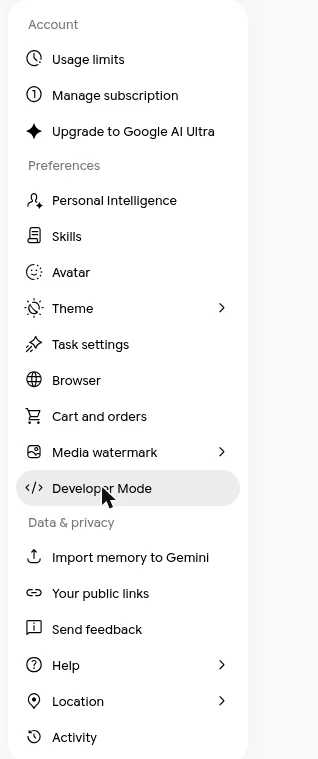
In Gemini, open Settings at the bottom of the left-hand bar and choose Developer Mode. In the Choose an app window, press Create new.
Paste the server URL
Under MCP Server URL paste
https://api.chavruti.ai/mcpand press Next. Leave Additional settings empty: Chavruti registers Gemini by itself, so there's no client ID or secret to enter.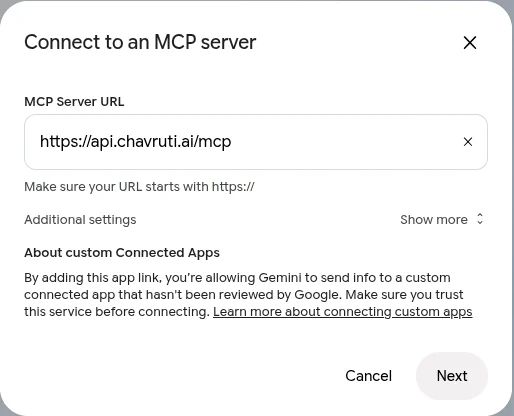
Agree to Google’s notes
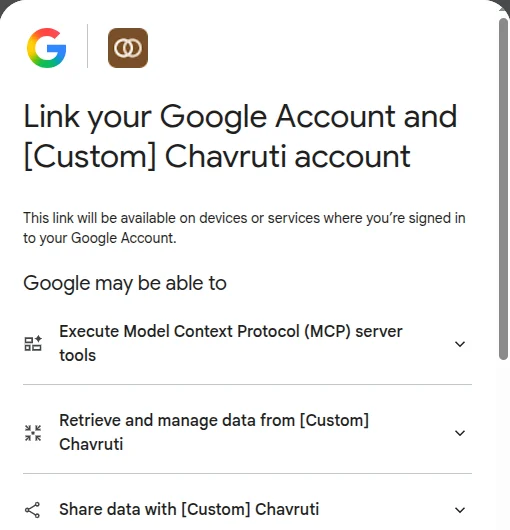
Gemini explains what a custom MCP server can do. Scroll to the end, tick I understand and accept the security and privacy risks and press Connect. Google then asks to Link your Google Account and [Custom] Chavruti account; scroll down and press Agree and continue.
Sign in to Chavruti and approve
Chavruti's own page opens and names the assistant asking. Sign in if you aren't already, then choose Learn with you so Gemini can record what you learn, or View only to let it read without recording, and press Approve. You can remove the connection any time in the Chavruti app under Settings → Assistants.
Save the app
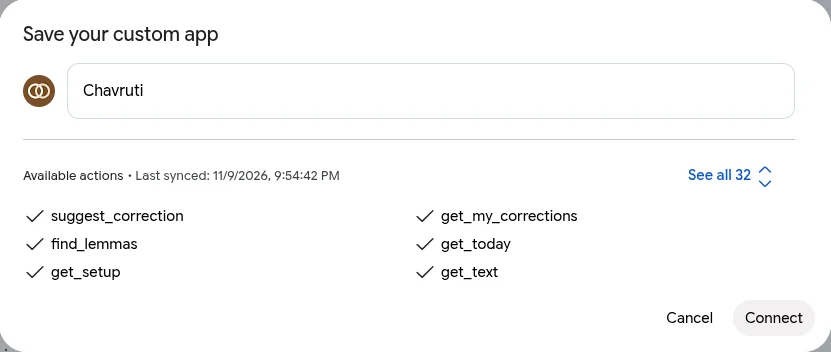
Back in Gemini, Save your custom app shows Chavruti with its icon and its tools. Press Connect. Gemini says Custom app added.
Say hello
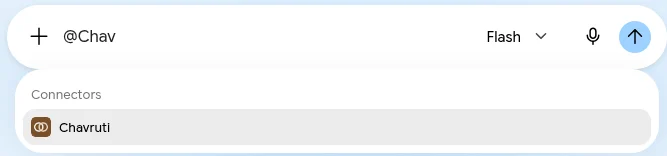
In a new chat, type @Chavruti, choose it under Connectors, and say "Let's start learning." Your assistant asks a few questions about you, then opens a real text with you within the first few minutes.
Questions
Why Developer Mode?
It’s where Gemini lets you add an MCP server that isn’t in Google’s own list. It doesn’t change anything else about how Gemini works for you.
How do I disconnect?
In the Chavruti app, open Settings → Assistants and press Disconnect; it stops working at once. You can also remove Chavruti in Gemini's own settings. Your learning record stays in Chavruti either way.